Google Drive Sync
Google Drive can store your books and reading data. The built-in connection requires a Google account; you do not need your own Google Cloud project or OAuth credentials.
Account Settings Sync handles preferences separately. To share reading history, connect Drive on both devices and configure storage sync.
Connect Google Drive
- Open Yatsu and go to the Library.
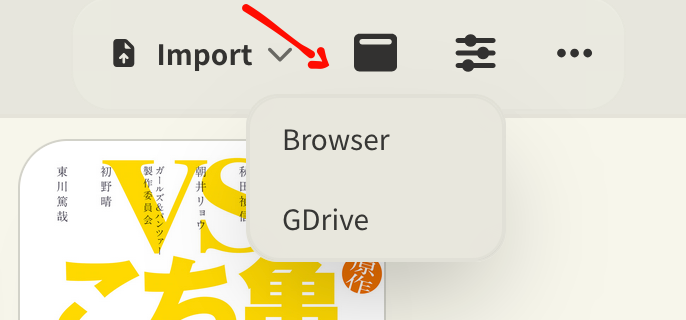
- Click the storage picker in the header.
- Choose Google Drive.
- Pick your Google account in the Google account picker.
- Review the Google permission screen and continue.
- Wait for Yatsu to load the Drive library.
The first time you connect, Yatsu creates its own yatsu-reader-data folder in your Drive. After that, Yatsu stores the authorization in this browser's local Yatsu data, so reloading the page should not ask you to log in again.
Yatsu stores a short-lived access token in this browser. You may need to authorize Drive again when it expires, if Google requests authorization, or after clearing site data, revoking access, or changing browser profiles or devices.
Managing the built-in Google Drive source
You can manage the built-in Google Drive connection from Settings -> Data -> Sources.
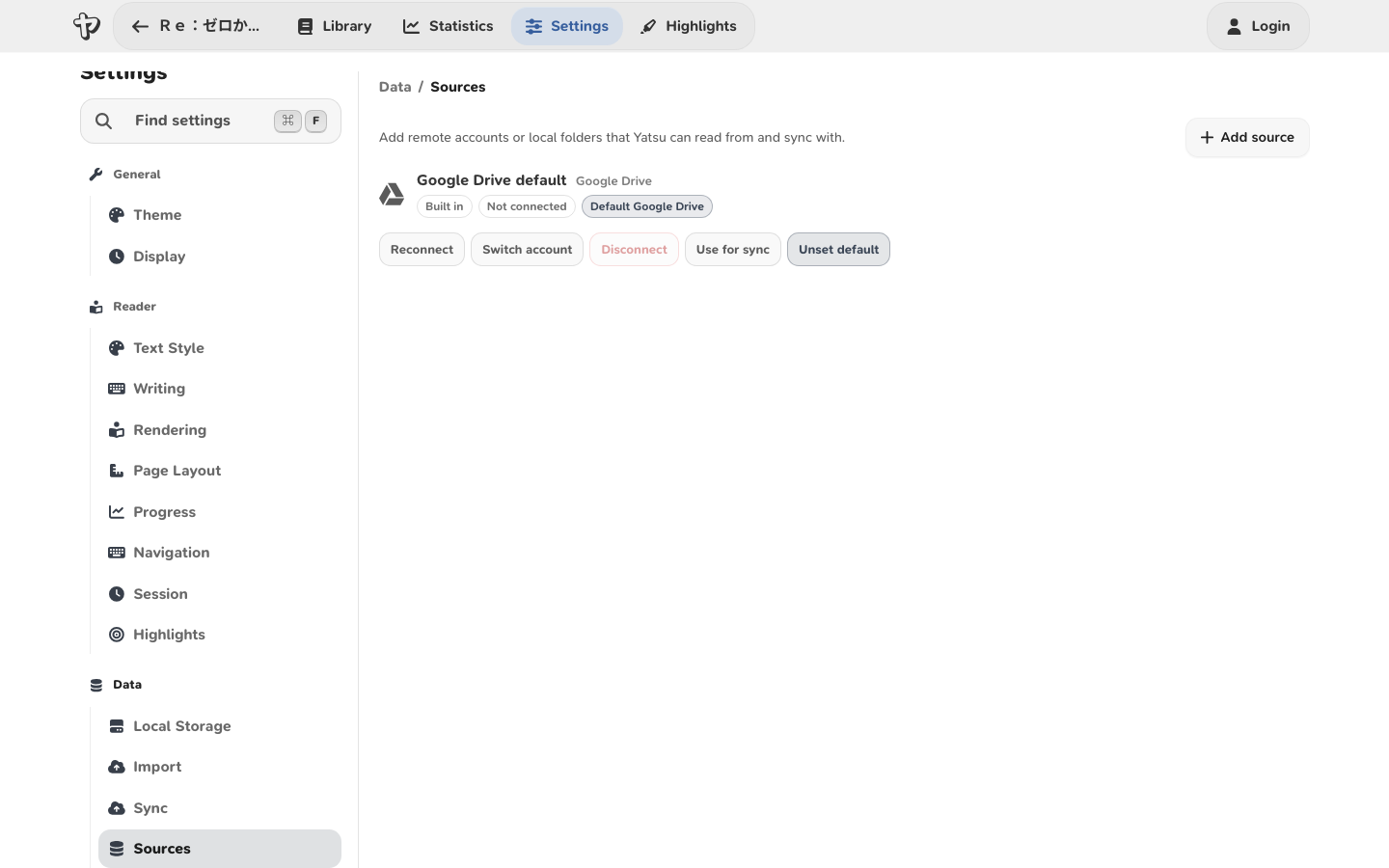
- Reconnect refreshes the default Google Drive authorization for the current browser.
- Switch account opens Google's account picker so you can choose a different Google account.
- Disconnect makes Yatsu forget the default Google Drive authorization stored in this browser. It does not delete your books or the
yatsu-reader-datafolder from Google Drive.
If you disconnect or switch accounts while using Google Drive as the active library or sync target, you may need to choose the storage source again from the Library header or update your sync settings.
What Google Drive sync can move
Google Drive storage sync can move reading data between this browser and your Drive, including:
- current reading progress
- saved bookmarks
- highlights
- plain book notes
- reading statistics and streak data
- reading goals
- audiobook and subtitle data
Yatsu still uses the browser database as the live app database while you read. Drive is the shared storage source that Yatsu imports from and exports to when sync runs.
If reading history is missing on another device, follow Statistics and Sync.
What Yatsu can access
The built-in Google Drive source uses Google's drive.file permission. This is a limited Drive permission for app-created or app-authorized files, not broad access to your whole Drive.
Because of that limited permission, the built-in source will not automatically pick up an old ttu-reader-data folder that was created by ttsu. It uses Yatsu's own yatsu-reader-data folder instead.
Compatibility with ttsu
The built-in Google Drive source is a Yatsu default source and is not meant to interoperate with ttsu.
To share a Ttsu library, use a custom Google Drive source. The advanced setup below uses your own Google Cloud project and OAuth credentials.
Legacy custom Google Drive setup
Use this only if you need a custom Google Drive storage source, your own OAuth client, or an advanced ttsu-compatible setup. Most users should use the built-in Google Drive source above.
Prerequisites
A Google account.
Steps
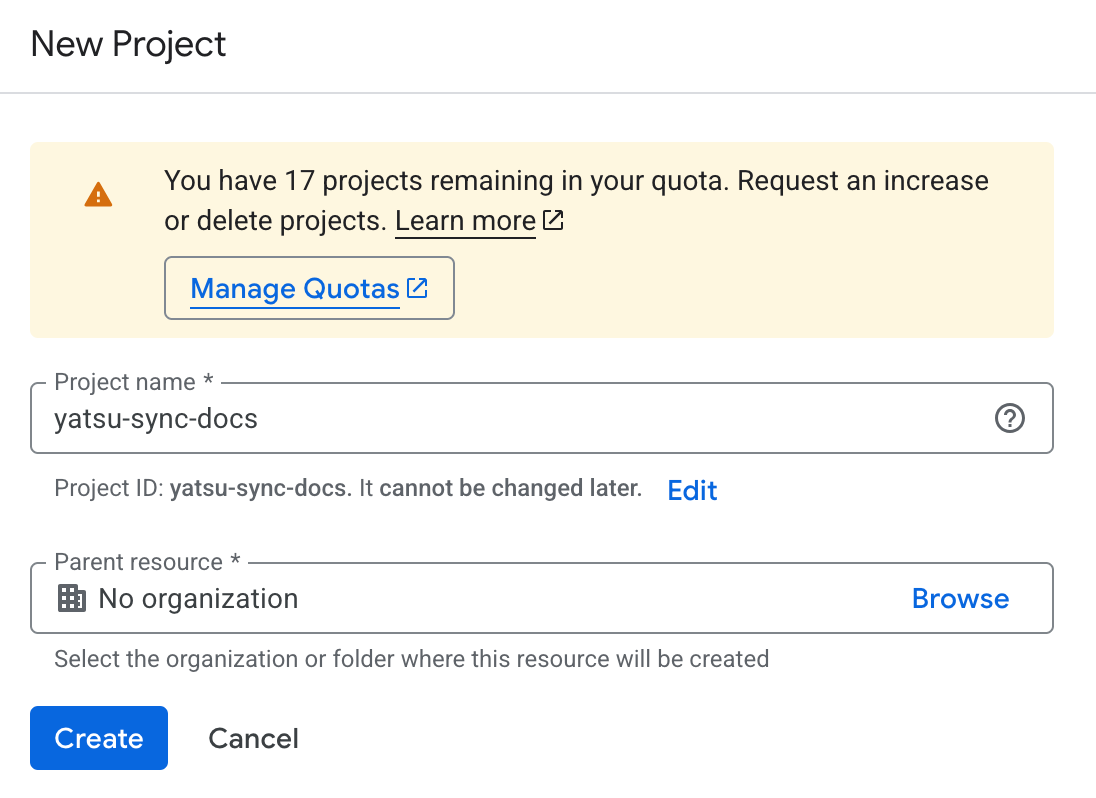
Open the Google Cloud project selector and click on "Create Project".
In the "Project name" field, give it any name you want, then click on Create. You don't need to pick an organization in the "Parent resource" field.
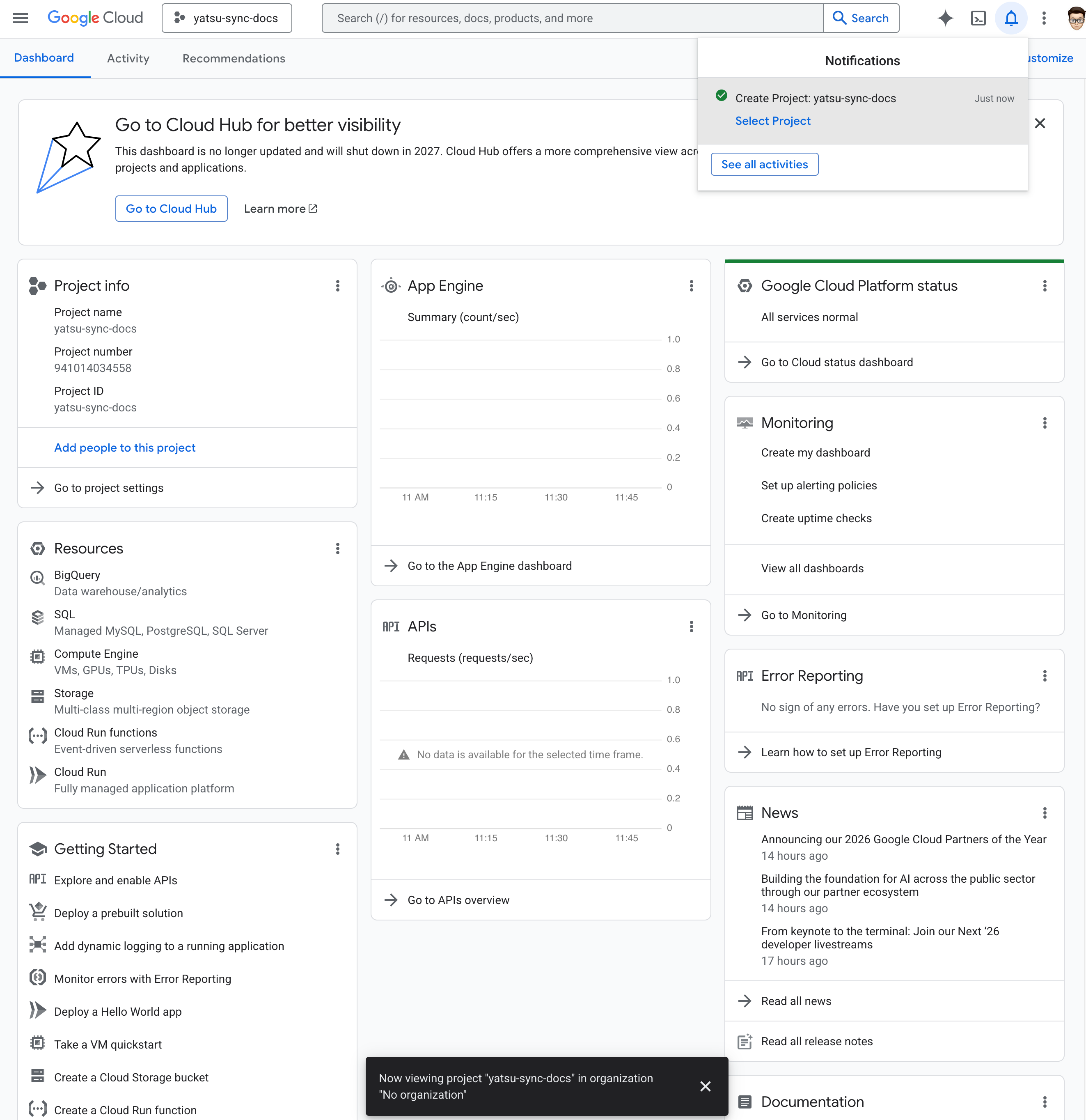
You will be automatically redirected to the project page:
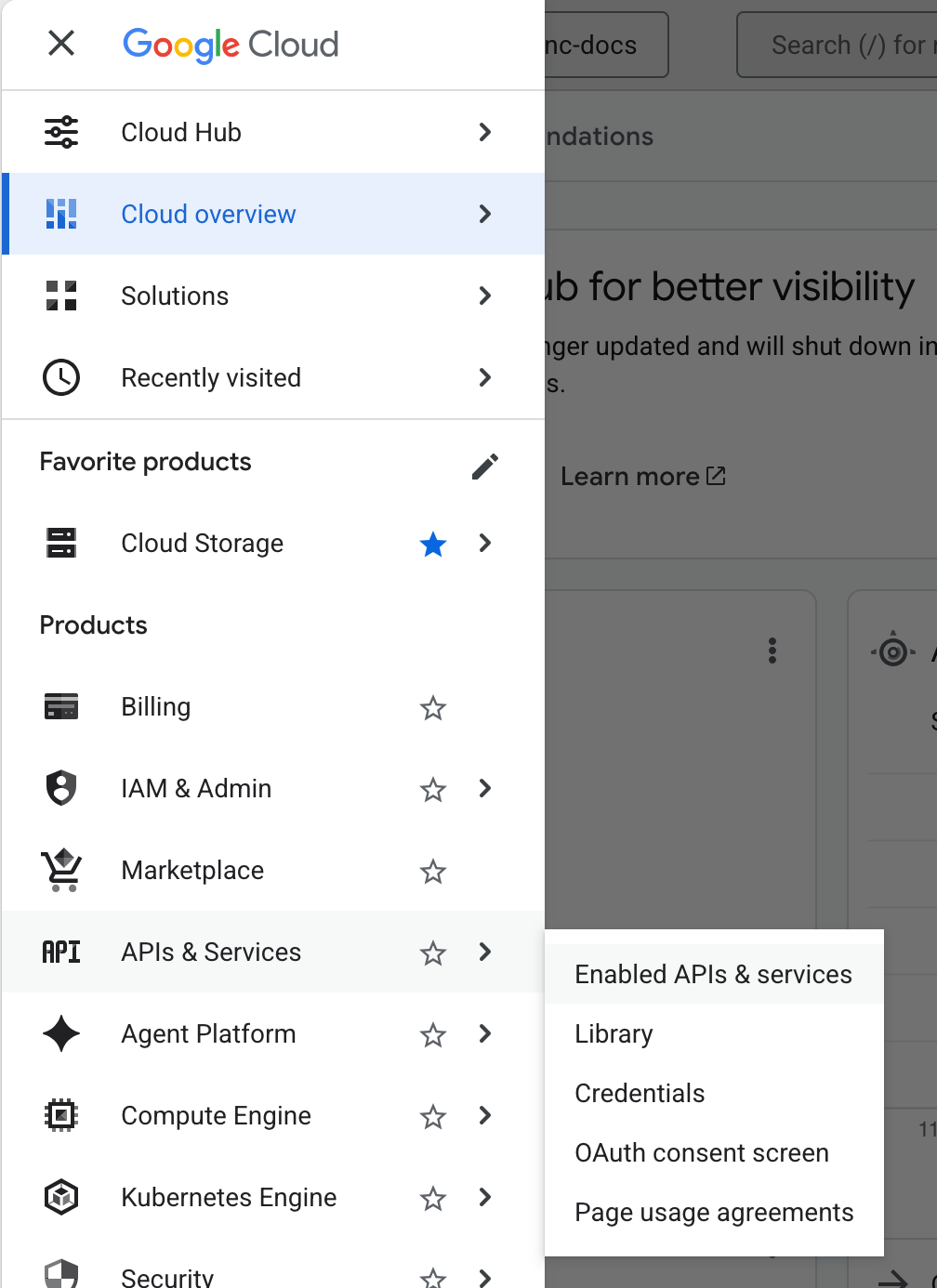
Click on the three lines at the top left to open the sidebar. Hover over "APIs & Services" and then click on "Enabled APIs & services":
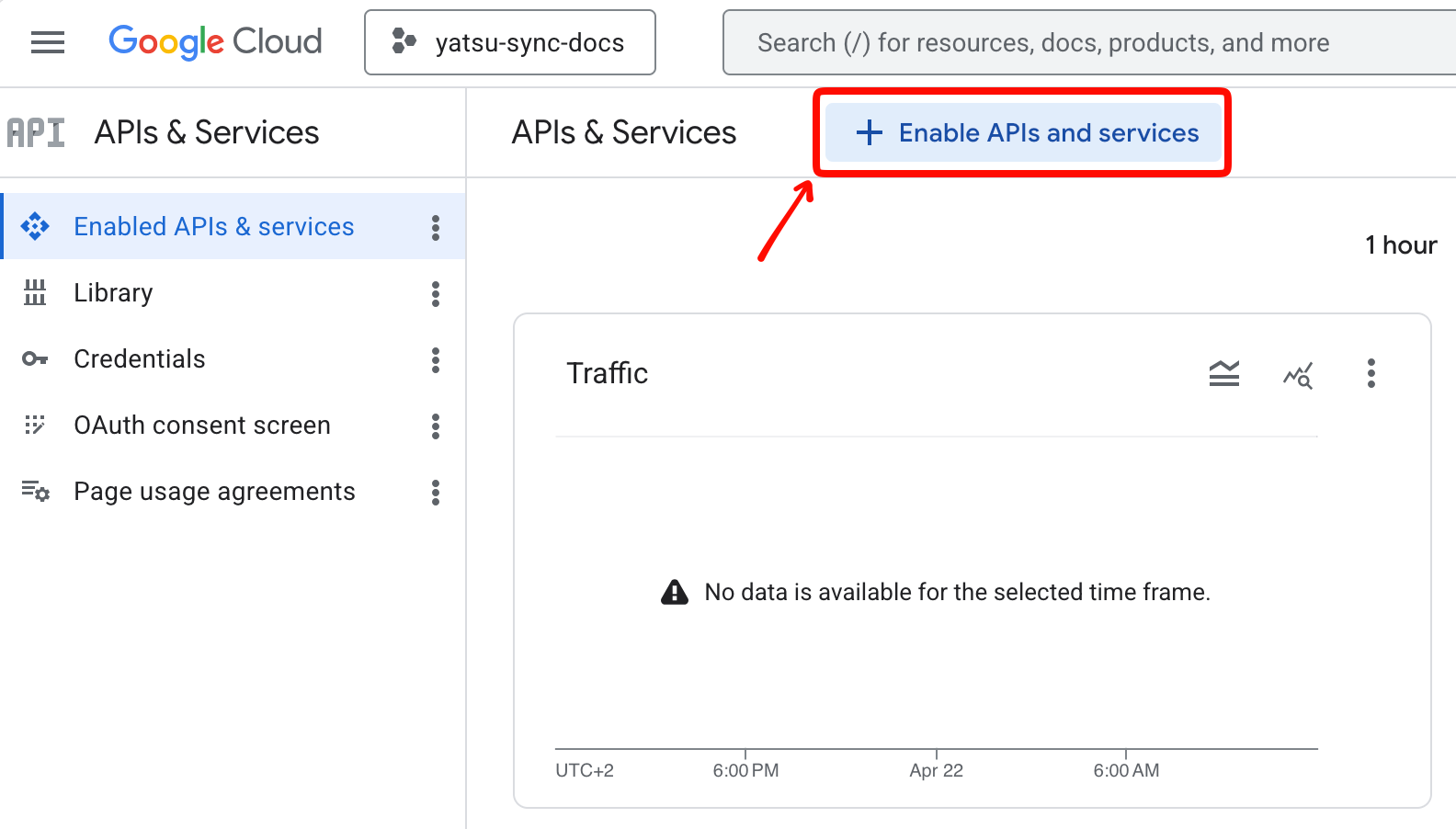
Click on "+ Enable APIs and services":
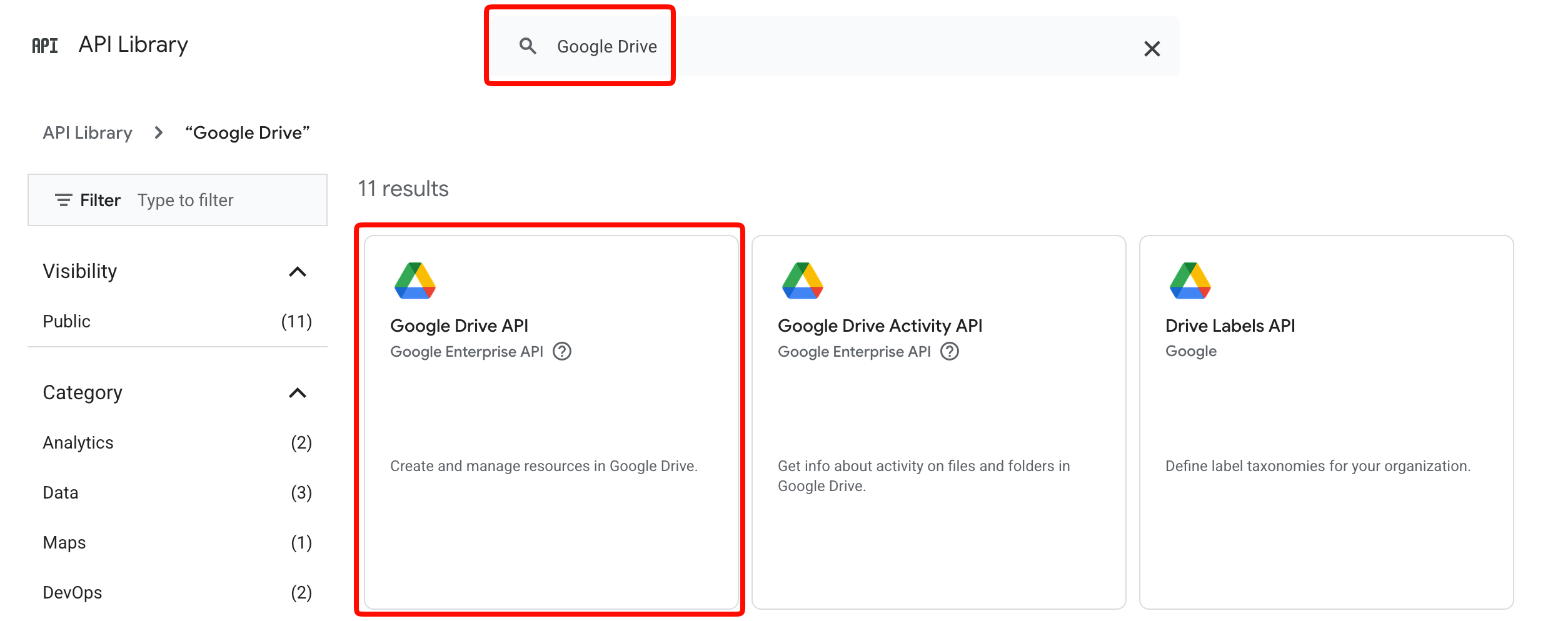
In the search box, write "Google Drive" and press on Enter.
Then, click on "Google Drive API":
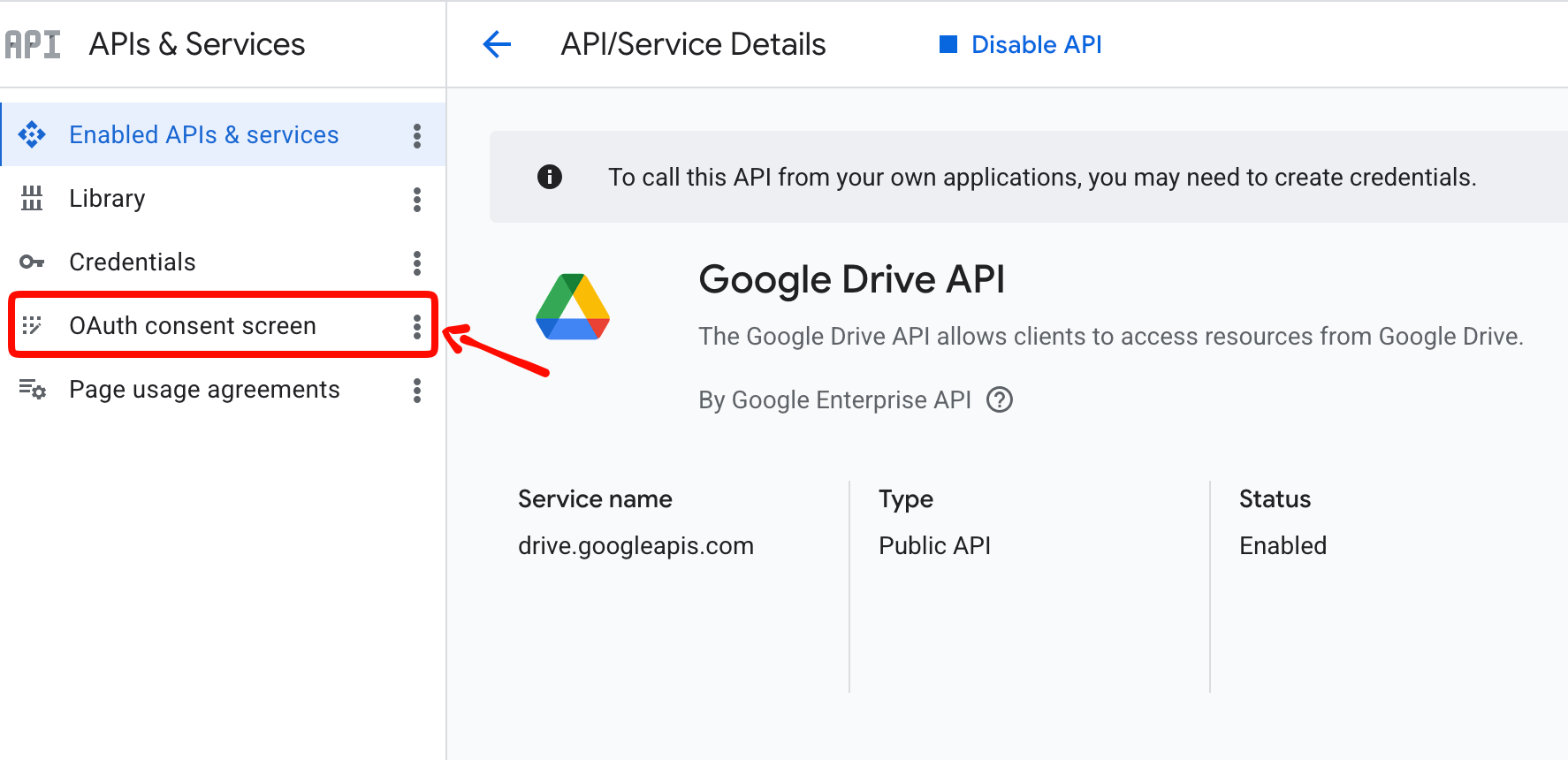
Click on the blue Enable button that appears.
You will be redirected to the Google Drive API details. From that screen, click on "OAuth consent screen":
Click on the blue "Get started" button in the middle. This screen will appear:
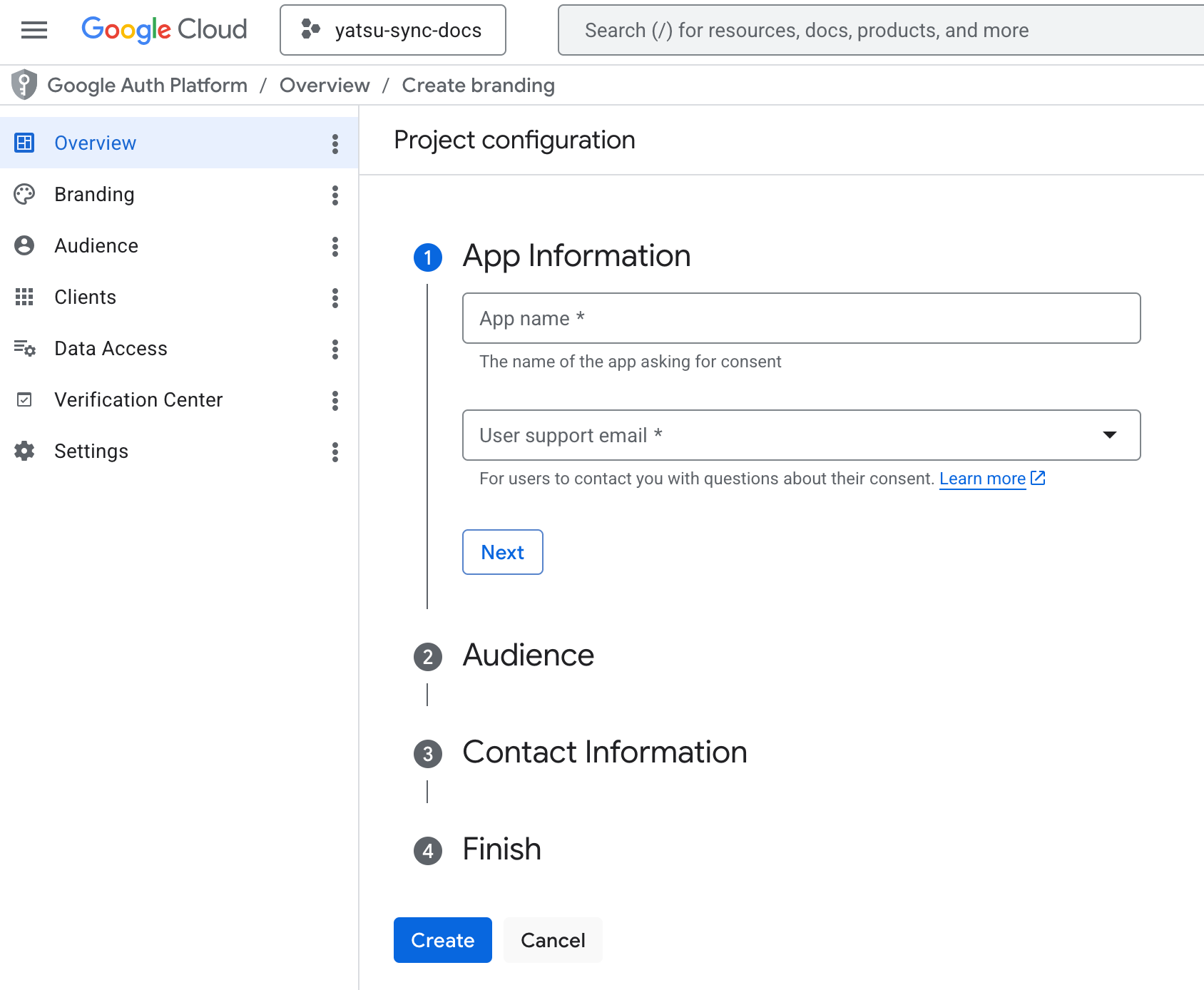
In "App name", you can write whatever you want.
In "User support email", pick your own email from the list.
Click on "Next".
From "Audience", click on "External", then click on "Next".
In "Contact Information", enter your own email, then click on Next.
In "Finish", click on the checkbox to agree to the terms, then click on "Continue".
Click on "Create".
You will be redirected to this page:
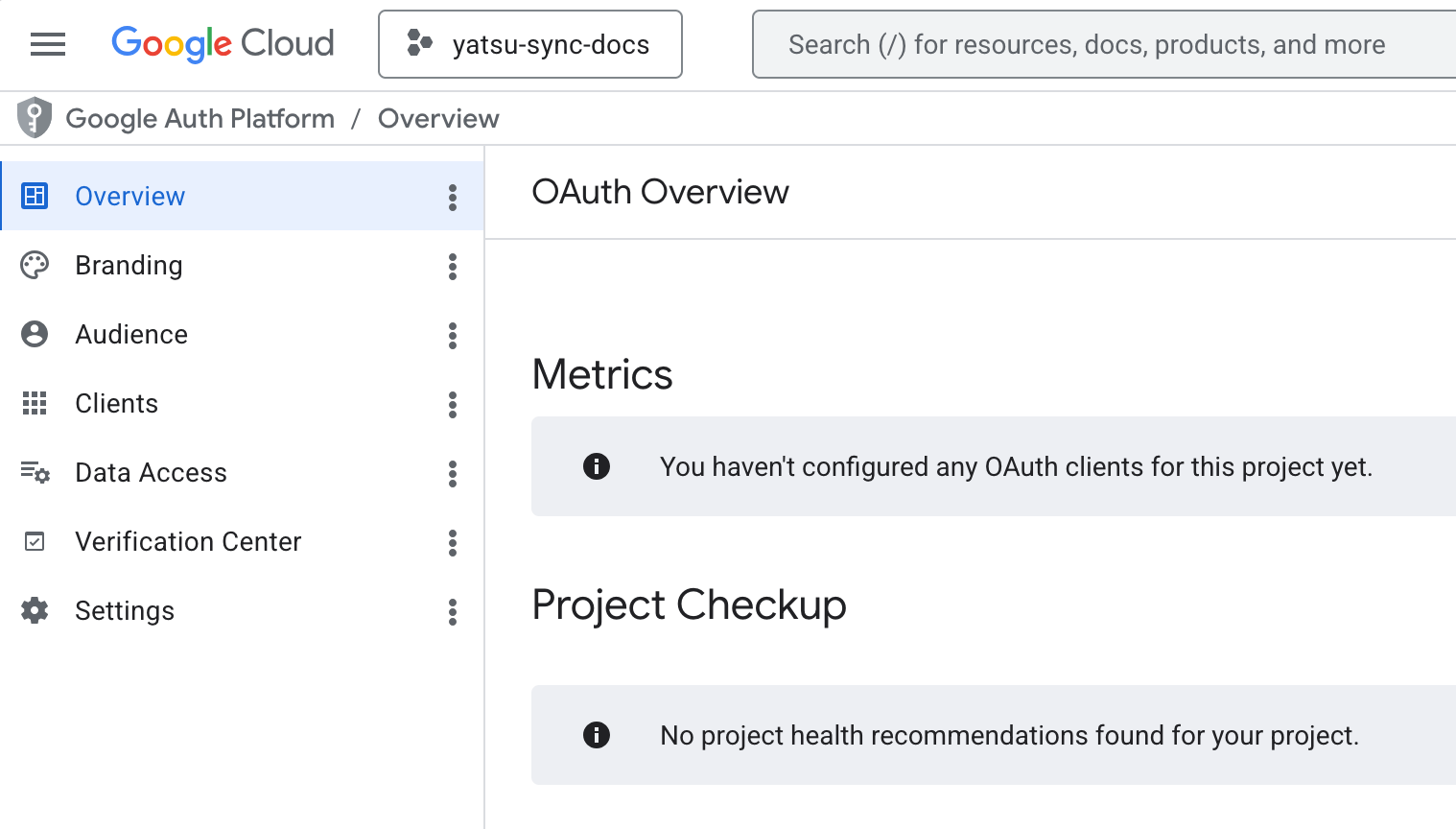
Click on "Data Access" on the left.
From the new page that appears, click on the white "Add or remove scopes" button. A table will appear from the right side.
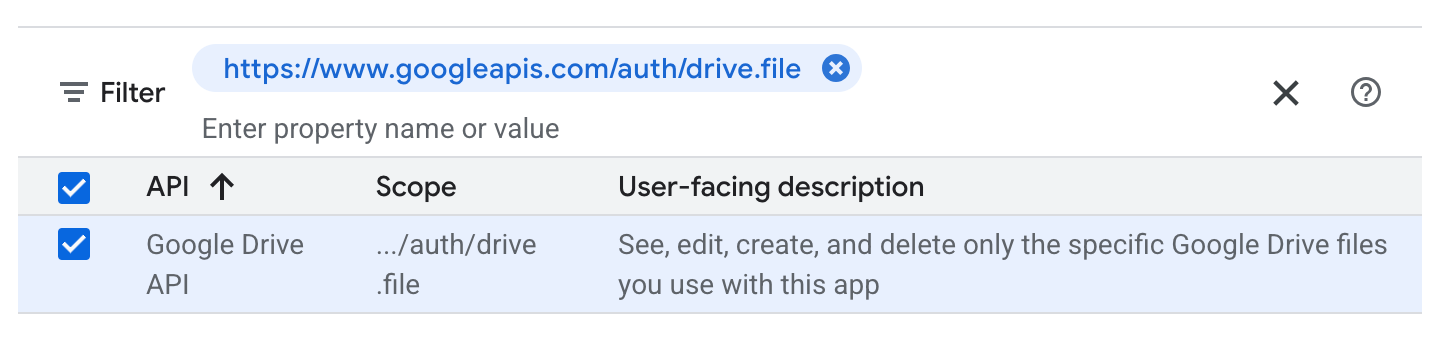
Click on the text area next to "Filter" and write "drive.file". Then click on the only option that appears. This will filter the table to only show the "Drive file" scope.
Click on the checkbox next to the only row that appears, then click on "Update" at the bottom:
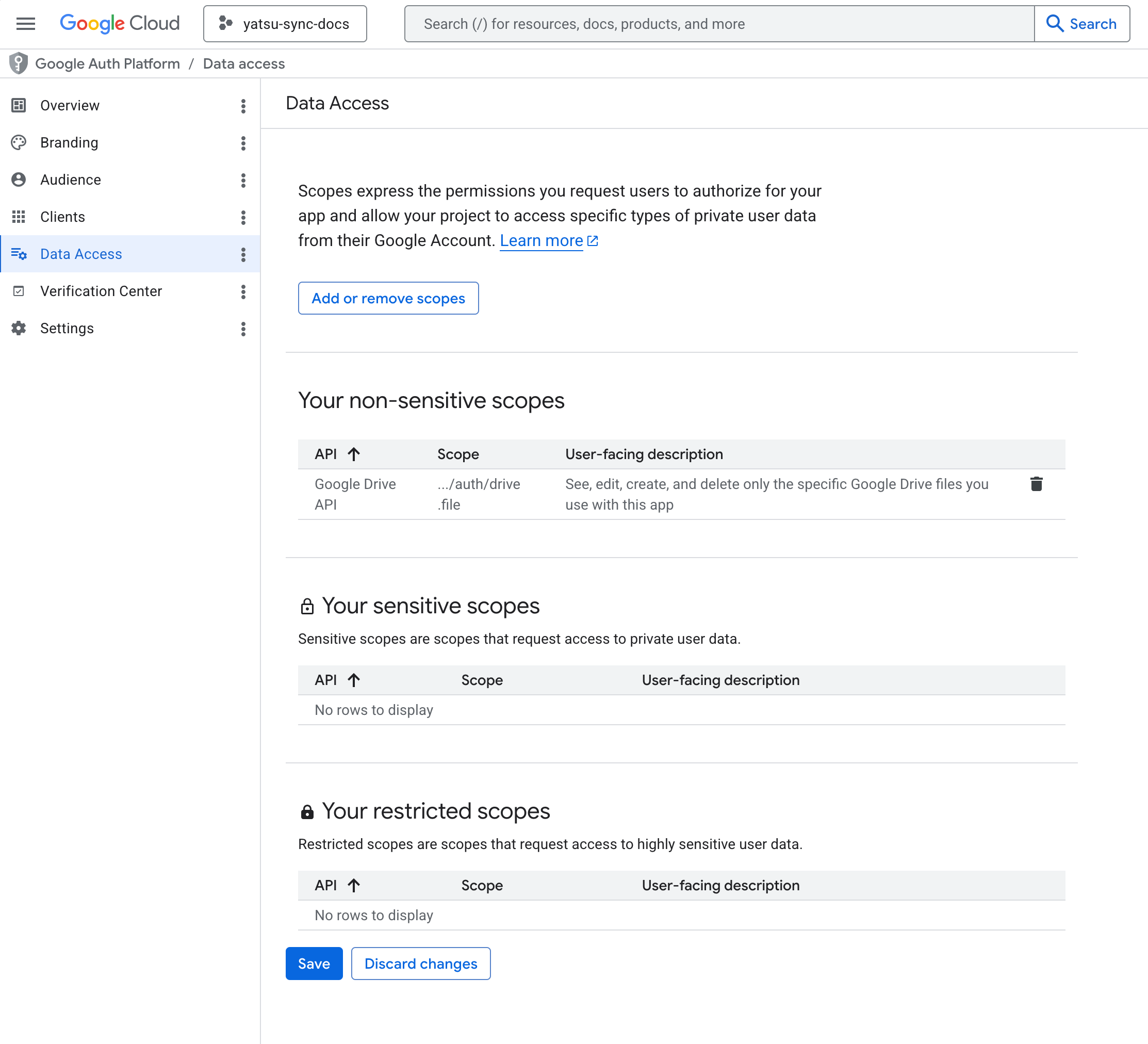
The table will close, and you will see the page you were on before. Click on the "Save" button at the bottom to save:
From the sidebar on the left, click on "Clients".
Click on "+ Create client".
From "Application type", pick "Web application".
This screen will appear:
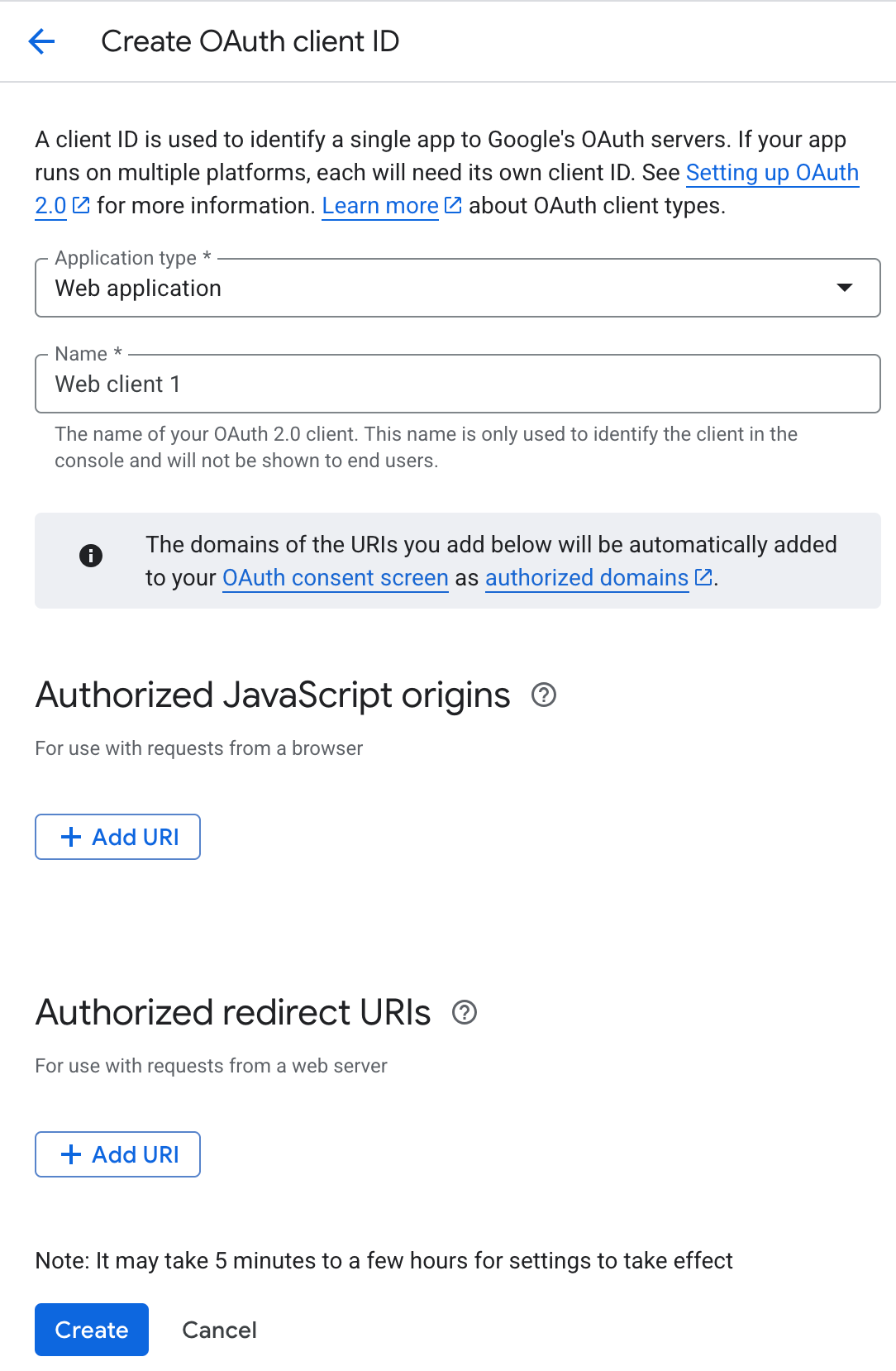
In "Name", pick anything you want. "Yatsu" is ok for example.
Under "Authorized JavaScript origins", click on "+ Add URI" and enter the https://app.yatsu.moe URL.
Under "Authorized redirect URIs" click on "+ Add URI" and enter https://app.yatsu.moe/auth.
Click on the blue "Create" button at the bottom of the page.
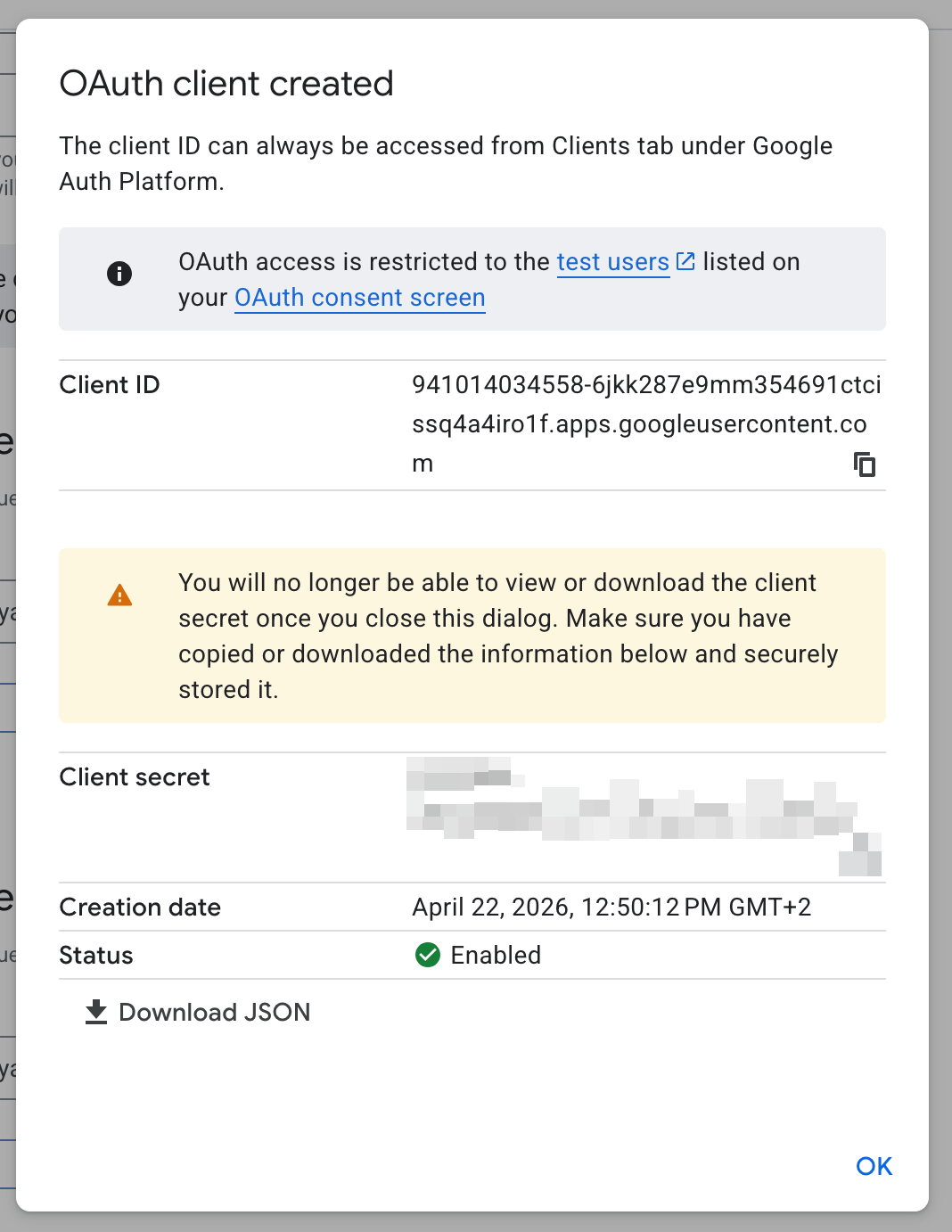
You will see a dialog pop up, where you will see your Client ID and your Client secret. Save and store them somewhere, because you will need them later in Yatsu:
Important
Once you close this dialog, you will not be able to see your client secret again. Take note of it somewhere safe. If you lose your secret, you will not be able to connect that custom source to Drive.
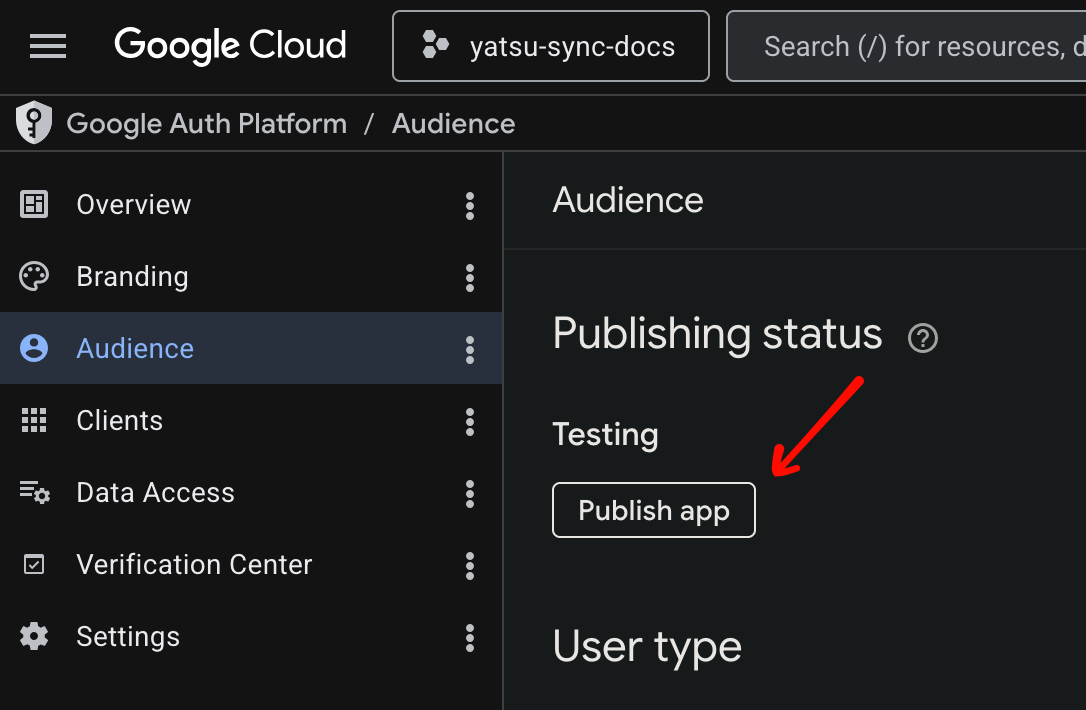
Lastly, click on "Audience" on the left, and then click on "Publish app".
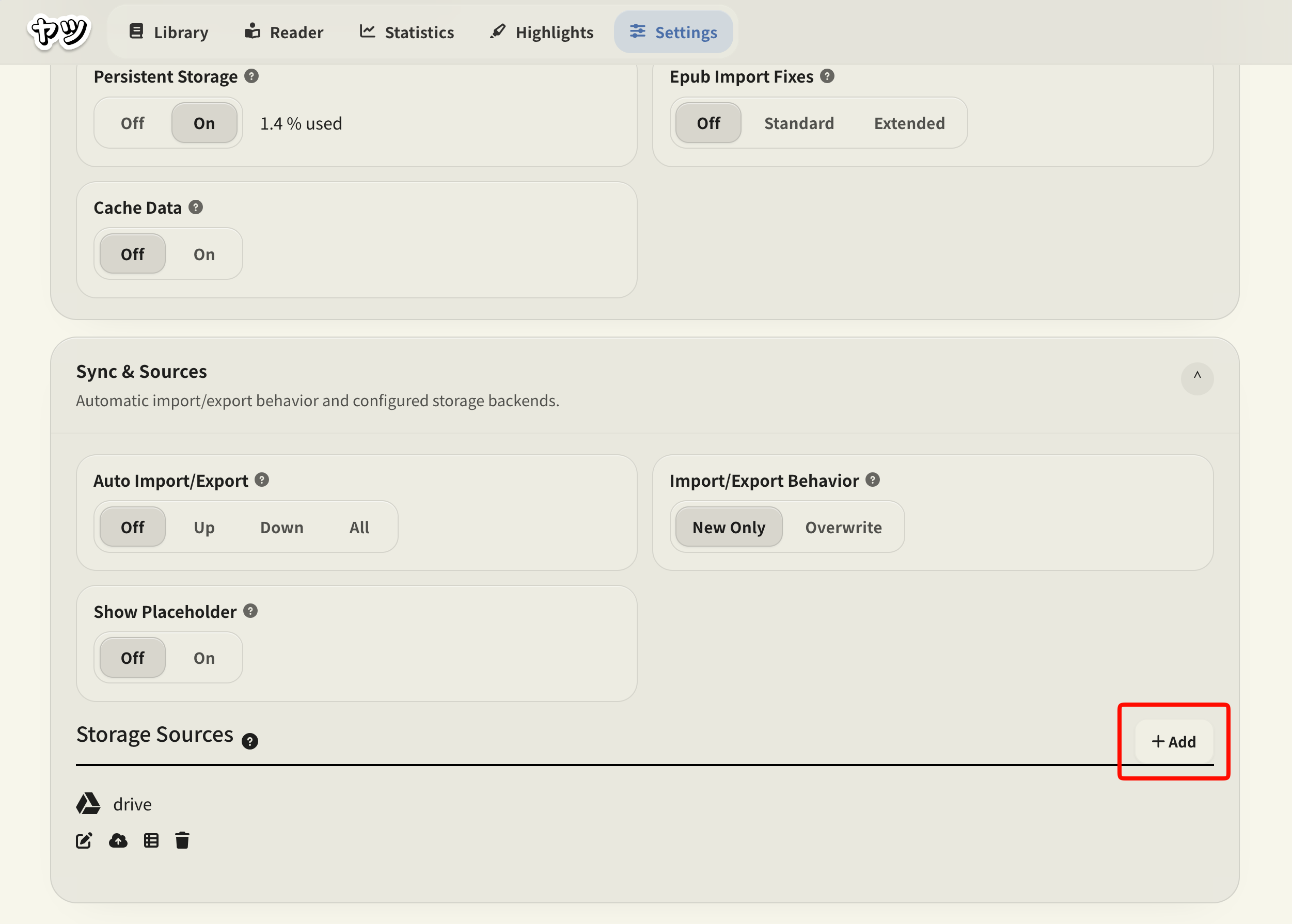
In Yatsu, open Settings > Data > Sources, then choose + Add:
This dialog will appear:
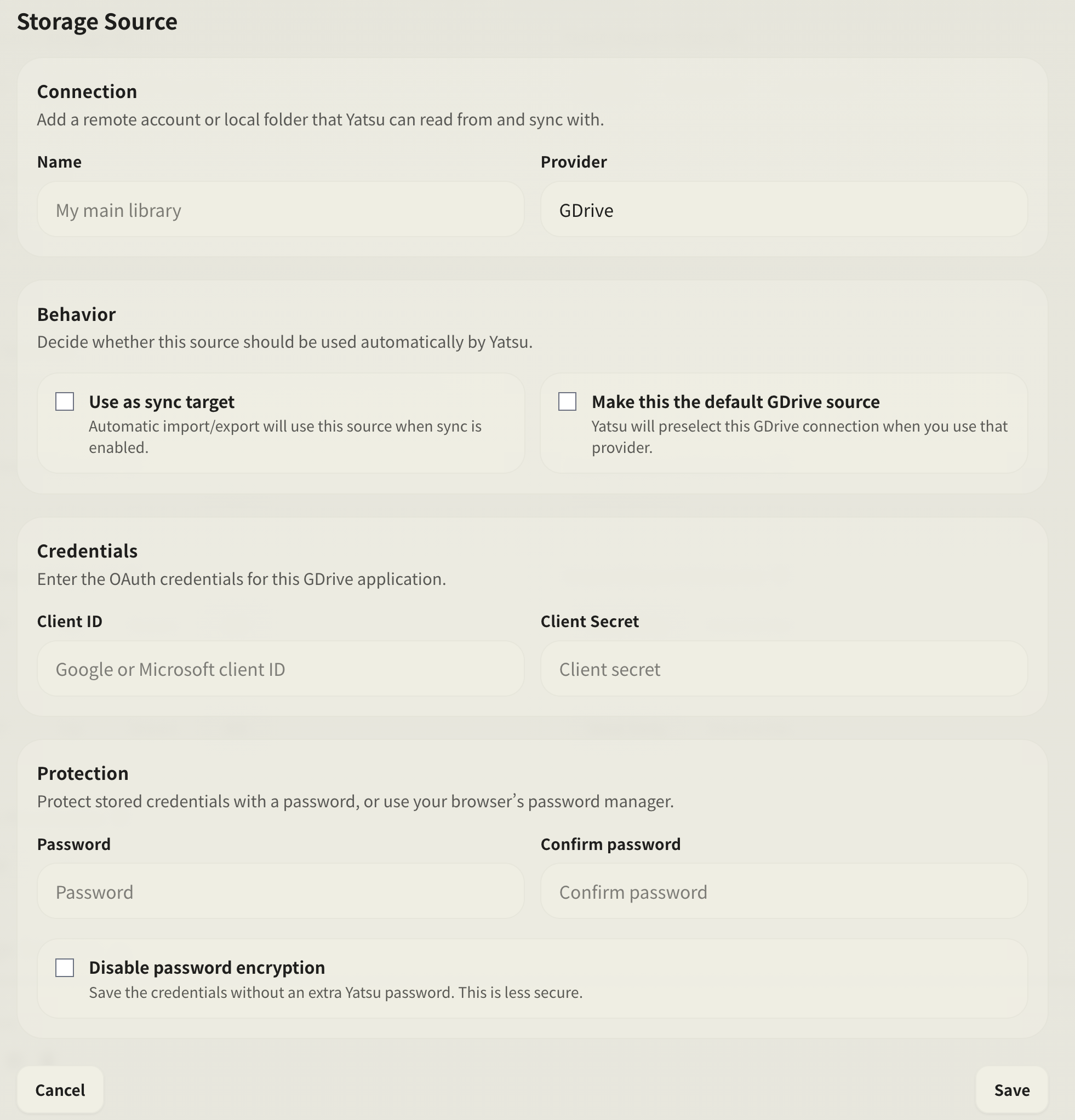
In Name, put whatever you wish.
Pick "Google Drive" from the provider dropdown.
Under Behavior, enable Use as sync target if automatic import/export should use this source. You can also make it the default source for the provider. Configure sync directions separately in Settings > Data > Sync; see Statistics and Sync.
In "Credentials", enter the Client ID and Client Secret that you stored before.
Under Protection, configure how Yatsu protects saved credentials. See Storage Source Security before changing the password protection options.
Click on "Save".
From Yatsu's library, you can now select your storage source and see the books that have been stored there: