Using the Library
The Library is where you import books, switch storage sources, browse by reading state, series, or tags, and choose books for bulk actions.
Opening books
In normal browsing mode, click a book card or list row to open it in the reader.
The keyboard-focused book can also be opened with Enter.
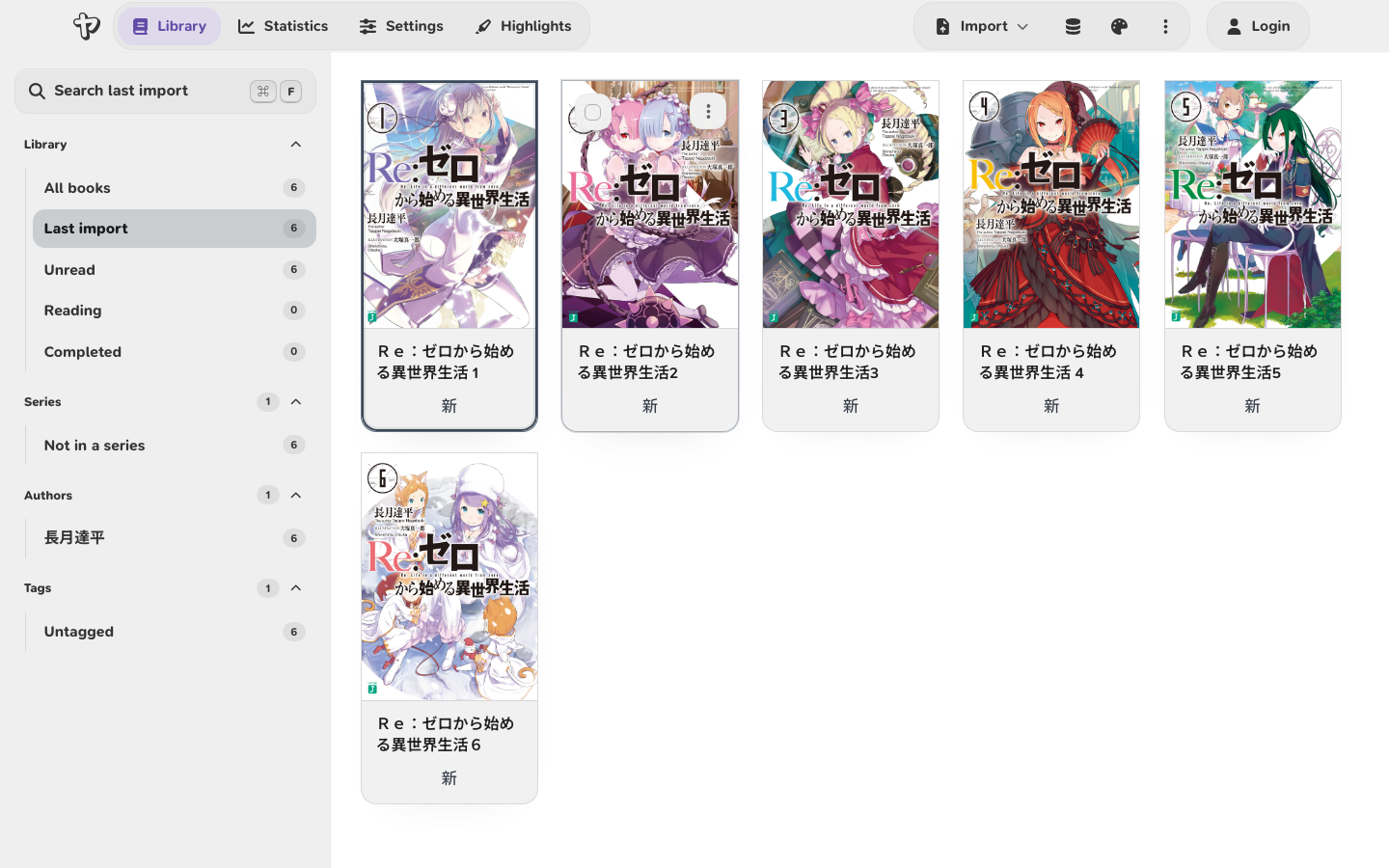
Importing books
Choose a storage source in the Library header, then open Import. Use Import File(s) for EPUB, HTMLZ, and text files, or Import Backup to restore a backup ZIP.
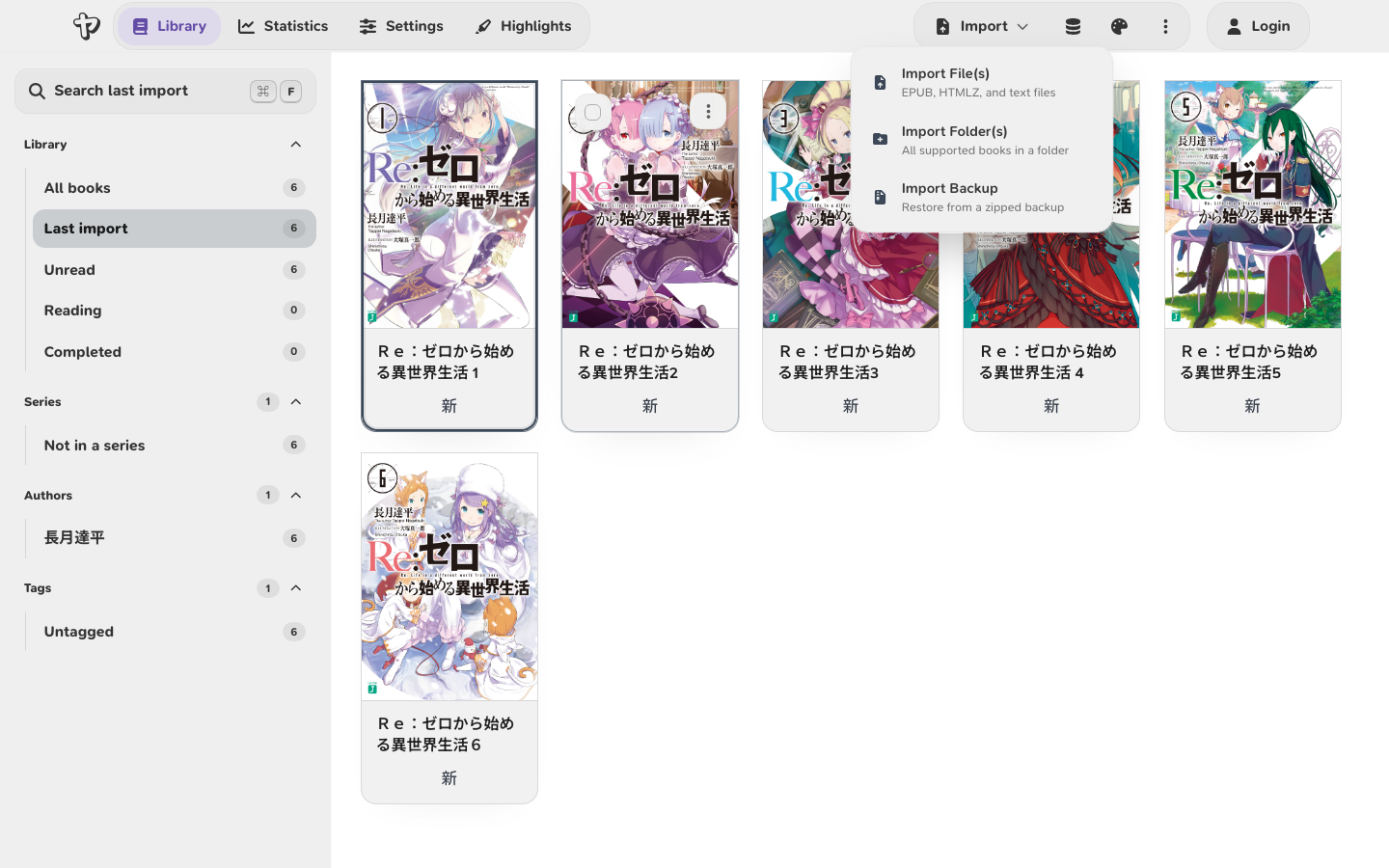
Select mode
Select mode is for choosing one or more visible books before running a bulk action. Use the check control on a book to enter select mode and select that book.
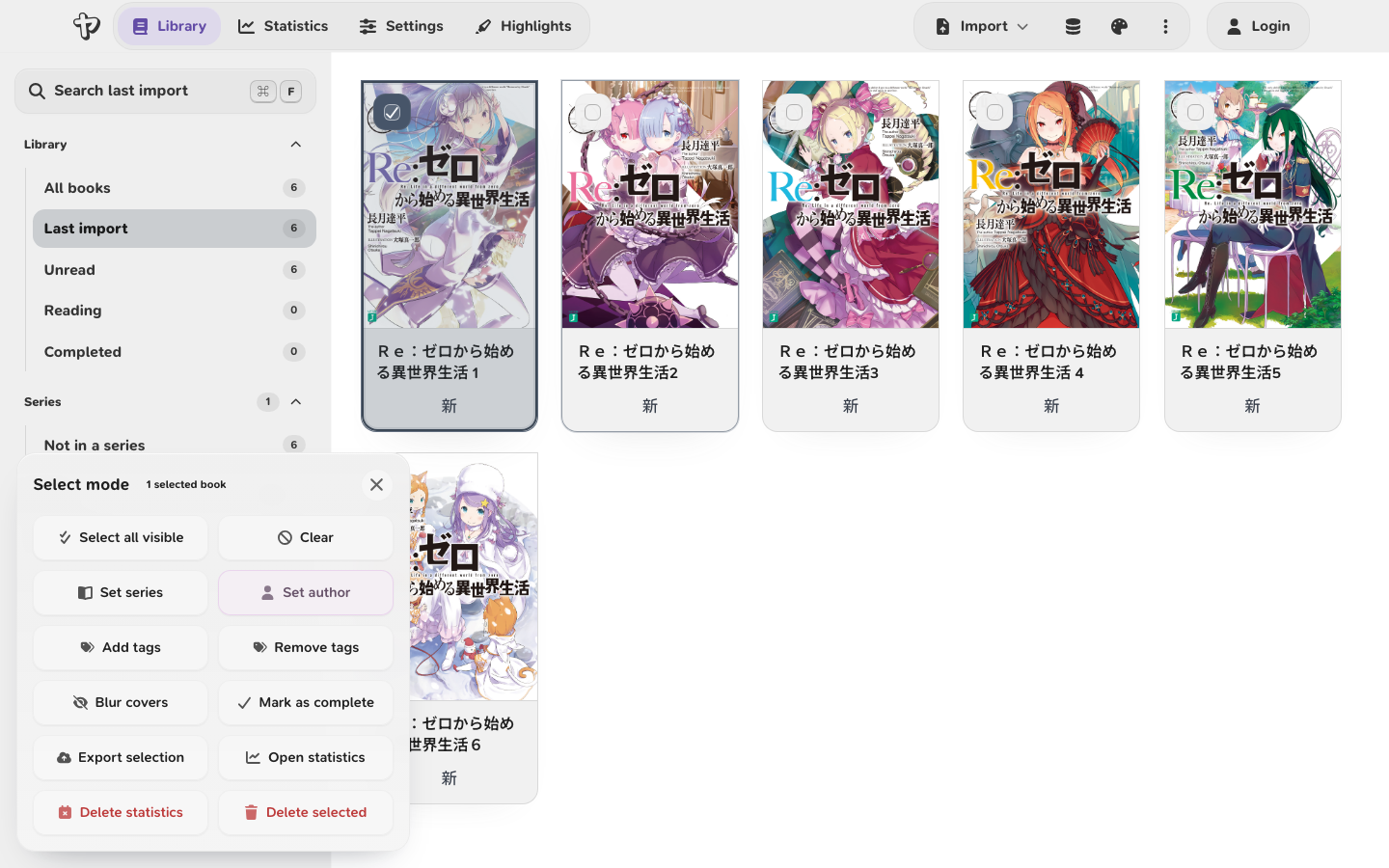
While select mode is active:
- Click a book card or list row to select or deselect it.
Shift+ click selects the visible range between the last anchor book and the clicked book.- Drag a selection box across visible book cards or rows to add them to the selection.
- Use arrow keys to move the keyboard focus.
- Press
SpaceorEnterto select or deselect the focused book. - Press
Shift+ an arrow key to extend the selection from the current anchor. - Press
Ctrl+AorCmd+Ato select all visible books. - Press
Escor the close button in the select toolbar to leave select mode.
Selection follows the current library filter and sort order. If you switch to a different shelf, series, or tag, books that are no longer visible are removed from the active selection. Use Select all visible when you want every book in the current filtered view.
Bulk actions
After selecting books, the select toolbar can update series, add or remove tags, blur or show covers, mark progress as complete or unread, export the selection, open statistics for selected local books, delete statistics, or delete the selected books. Supporters can also set or clear the author for selected books.
Some actions depend on the current storage source. For example, renaming and local statistics actions are only available for books stored in this browser.
Deleting browser books
When you delete books from Browser storage, Yatsu shows a confirmation with the local records that will be deleted and the records that will be kept. Book files, cover data, library metadata, reading progress, the current-reader shortcut, attachments, and local file handles are deleted with the book.
Open Settings -> Tracking -> Statistics to choose whether Yatsu keeps some local reading data after a browser book is deleted:
- Keep Statistics on Deletion keeps reading statistics for deleted books. Statistics are title-based, so they can be reused if a book with the same title returns later.
- Keep Highlights, Notes, and Bookmarks on Deletion keeps highlights, highlight notes, plain book notes, saved bookmarks, bookmark labels, bookmark notes, and snippets. If you import a book with the same title again, Yatsu reattaches those retained highlights, notes, and saved bookmarks to the new local copy.
The same settings group has cleanup actions for Deleted-book statistics and Deleted-book annotations when you want to remove retained local data for books that are no longer in the library.
These retention options only apply to local Browser deletion. Deleting books from Google Drive, OneDrive, WebDAV, or a filesystem source removes that title's folder or remote data from the selected storage source.
Complete local backups
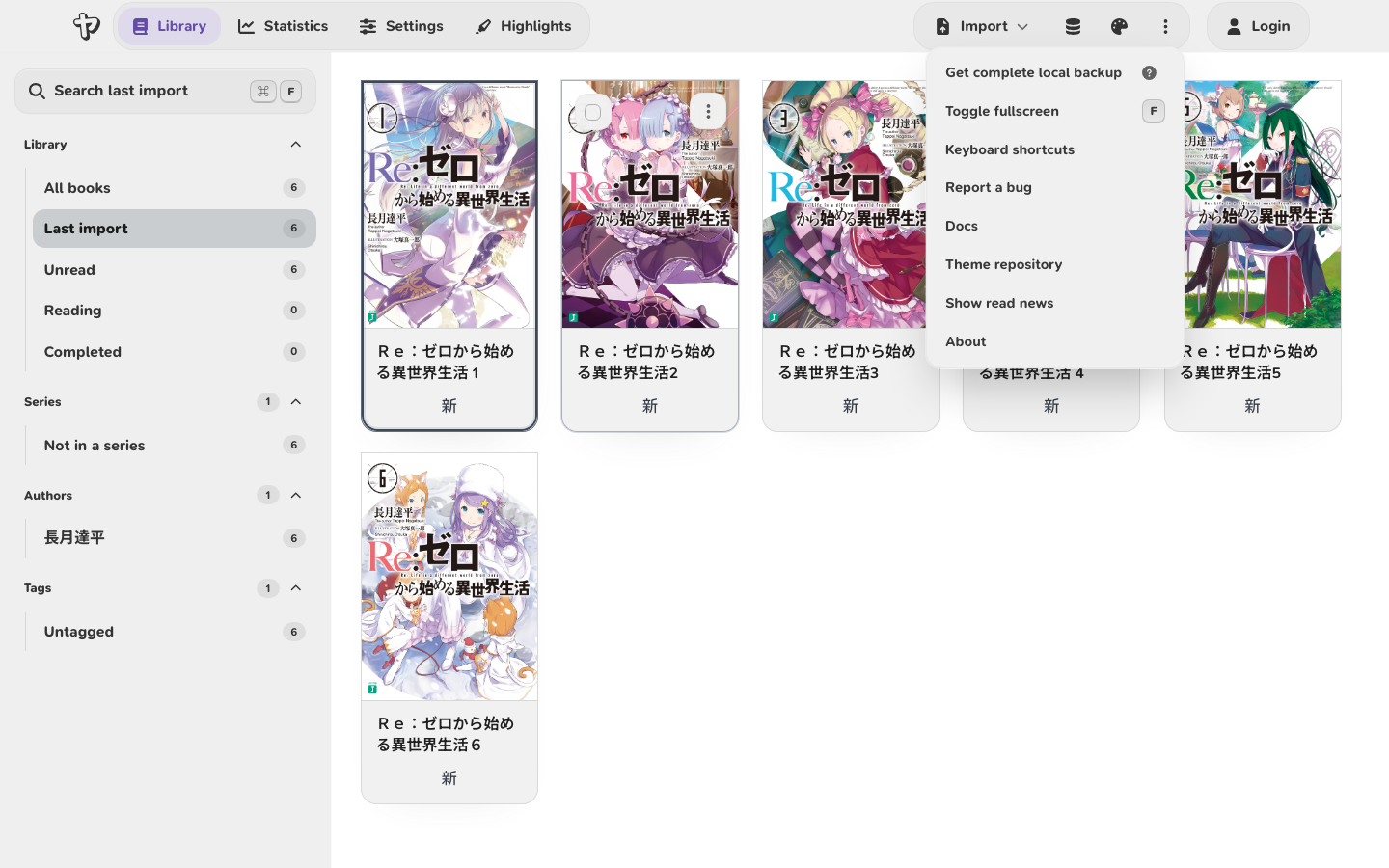
Use More library actions -> Get complete local backup when you want
one portable .zip copy of the data Yatsu has stored in this browser. This is
different from exporting a selected set of books: it always reads from the local
Browser library and includes every supported local book-data type Yatsu can
export.
The backup can include local books, current reading positions, saved bookmarks, highlights and notes, statistics, reading goals, audiobook state, subtitle data, covers, and supported Reader, Tracking, Library, and Statistics settings. It does not include account sign-in, cloud authorization, browser extension data, uploaded local font files, or unrelated browser storage.
To restore the backup in another browser, choose Browser as the storage source, then use Import -> Import Backup and select the downloaded zip. Older backup zips without a settings snapshot still import normally. If a future backup contains settings that the current Yatsu version does not recognize, those unknown settings are ignored.
Book actions
Open a book's three-dot menu to update per-book details such as series, tags, cover visibility, and reading progress. The details submenu shows stored metadata such as author, character count, last read time, bookmark time, and last update time when available.
Display settings
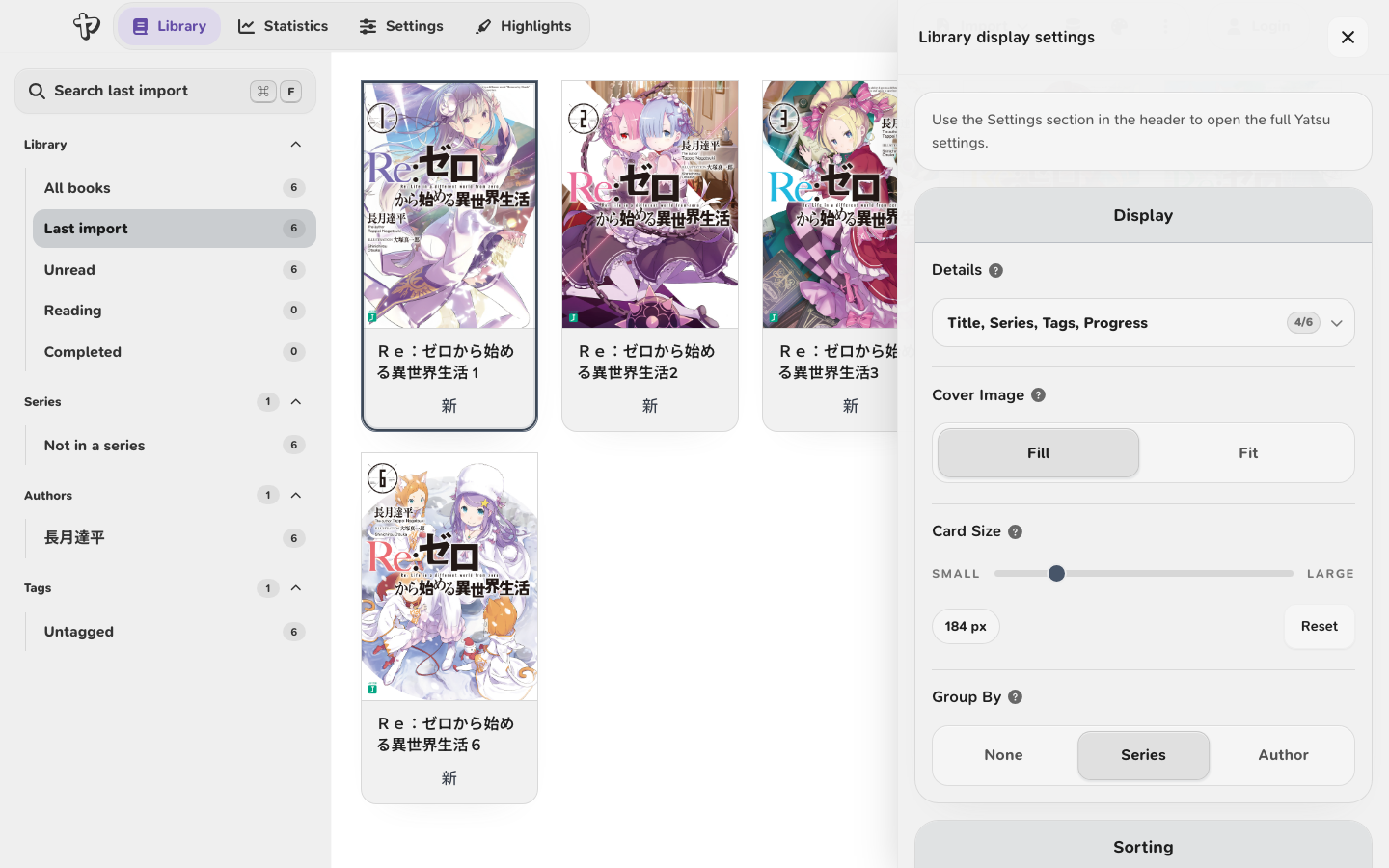
The library display settings can show optional details on book cards. Press Q in
the library to toggle this panel. Author, series, tags, and character count
appear as compact strips when those fields are enabled and available, with
multiple tags shown as comma-separated text.
Grouping and sorting
Yatsu groups compatible shelves by series by default. Use Group by -> Author to group by author instead, or None to return to a flat grid. Grouping works on shelves such as All books, Unread, Reading, Completed, Tags, and Untagged. Each row header opens that series or author shelf, matching the sidebar. Books without a series or author appear in the Not in a series or No author grid below the grouped rows. Use Group sort to order grouped rows by alphabetical name, last read, last update, progress, or book count. Progress is the percentage of known characters read across the whole group. When a series or author row has more covers off to the side, edge arrows appear to move that row one cover at a time. Series shelves can be grouped by author, and author shelves can be grouped by series. A series shelf is not grouped by series, and an author shelf is not grouped by author.
Custom covers (Supporter)
Choose Change cover from a book's three-dot menu and upload a JPG or PNG image. This replaces the book's stored cover. For browser libraries, the replacement is saved in this browser. For Drive, OneDrive, and file-system libraries, the replacement is saved as the book's cover file in that storage source, so other devices using the same library can display it.
Authors
Yatsu imports author metadata from new EPUB/HTMLZ imports when the book file includes creator metadata. Supporters can also choose Edit author from the book menu to choose an existing author or add, change, or clear the stored author field for any book. The Authors section in the sidebar also has Supporter-only actions to rename an author across matching books or delete the author value from those books.