Skip to content

Using Yatsu Offline

Yatsu is a web app, but it is also meant to keep working when you do not have a connection.

There are a few different kinds of "offline" here, though, and they are easy to mix up:

  • the Yatsu app itself loading
  • your books being stored locally
  • cloud storage or sync being reachable

This page explains what should work offline, what needs to be prepared first, and what to do if Yatsu opens to a browser offline page instead of the app.

Short version

Yatsu can be used offline, but only for data that is already on the device.

In normal use:

  1. Open Yatsu once while online.
  2. Open Data settings.
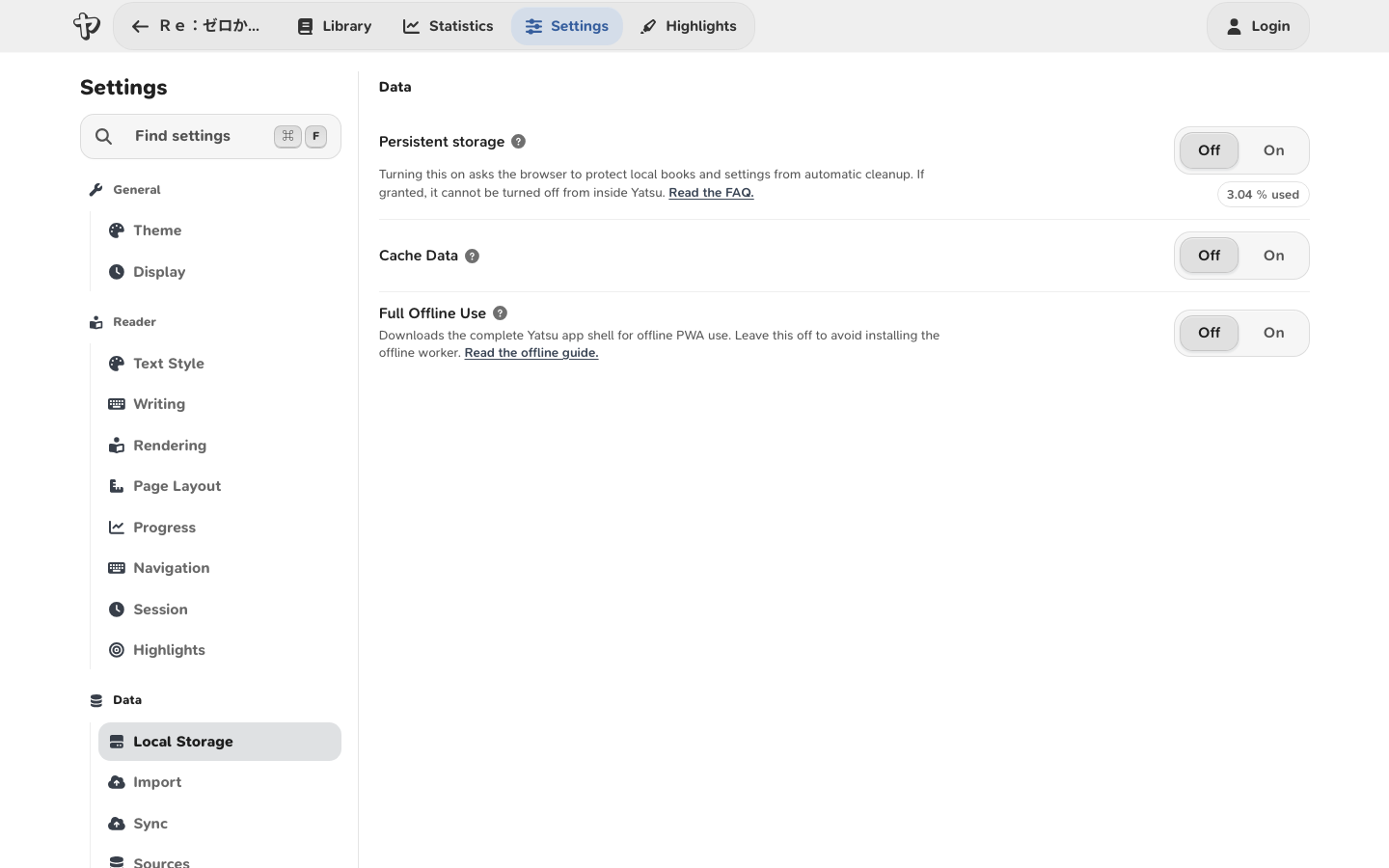
  3. Turn on Full Offline Use if you want Yatsu itself to be saved for offline PWA use.
  4. Open the books you want available offline at least once.
  5. Turn on Persistent storage in Settings -> Data if your browser allows it.
  6. Do not clear Yatsu's site data unless you have exported or synced everything you care about.

After that, Yatsu should be able to open offline and read books whose content is already local to this browser.

Google Drive and OneDrive still need an internet connection. When you are offline, Yatsu can keep using local data, but it cannot fetch new cloud data or upload changes until you are online again.

What should work offline

If the app and book data are already cached locally, you should be able to:

  • open Yatsu
  • open the library
  • read books stored in browser storage
  • read cloud books that were already opened and cached locally
  • keep local reading progress
  • use settings that are stored in the browser
  • use reading tracking and statistics locally

The important part is "already cached locally".

If you only saw a book listed from Google Drive but never opened it on this device, Yatsu may only have a placeholder for that book. A placeholder is enough to show that the book exists, but not enough to read the full book offline.

What does not work offline

Yatsu cannot do operations that require a remote provider while you are offline.

For example, Yatsu cannot:

  • fetch a new book from Google Drive or OneDrive
  • refresh a cloud library listing
  • upload reading progress to Google Drive or OneDrive
  • complete OAuth sign-in or change cloud credentials
  • import from or export to a cloud source

If you open a book that uses Google Drive or OneDrive while offline, Yatsu may show a message like:

Sync disabled due to missing Online Connection - refresh Page after going Online to try again

That does not necessarily mean the book is lost. It means Yatsu could not contact the configured sync source. If the book content is already stored locally, you should still be able to read it. Sync can be retried after the connection comes back.

Preparing books for offline reading

The safest way to prepare is simple:

  1. Go online.
  2. Open Yatsu.
  3. Open each book you want to read offline.
  4. Wait until the book fully loads.
  5. If you use cloud sync, let sync finish before going offline.

Opening a cloud book gives Yatsu a chance to keep a local copy in browser storage. Just seeing the title in the library is not always enough.

If you imported a book directly into the Browser source, then the book is already local to that browser profile. That is the best option if you mainly care about offline use on one device.

The app needs to be saved while online

For Yatsu to open while offline, the browser has to save the app files first.

Yatsu keeps a small offline cache by default and saves recently used app files as you move through the app. This helps reduce network use, but it is not the same as deliberately saving the complete app for offline use.

If you want Yatsu to behave like a fully prepared offline PWA:

  1. Go online.
  2. Open Data settings.
  3. Turn on Full Offline Use.
  4. Wait until Yatsu says it is saved for offline use.
  5. If you use the installed PWA, close and reopen it once while still online.

If you install the PWA and then immediately go offline before the browser finishes saving the app, the PWA may still show the browser's own offline screen.

If that happens:

  1. Go online again.
  2. Open Data settings.
  3. Turn on Full Offline Use, or turn it off and on again if it was already enabled.
  4. Wait until Yatsu says it is saved for offline use.
  5. Close and reopen the PWA.
  6. Try offline again.

Full Offline Use setting

Yatsu has a Full Offline Use setting under Settings -> Data.

This setting controls whether Yatsu downloads the complete app shell for offline use. It is off by default so that regular online use does not make every browser download every app file after each update.

When Full Offline Use is off:

  • Yatsu still caches a small baseline needed to start common flows.
  • Pages and app files can still be cached as you use them.
  • Recently used parts of the app may work offline.
  • A fresh PWA install is not guaranteed to have every Yatsu screen saved offline.

When Full Offline Use is on:

  • Yatsu downloads the full app shell while you are online.
  • Yatsu shows progress while it saves the app for offline use.
  • Future app updates are saved again for users who keep the setting enabled.
  • This does not download every book; you still need to open books you want available offline.

Turn this on if you expect to open Yatsu itself while offline, especially from an installed PWA.

Persistent storage

Yatsu stores local books, settings, progress, and cached cloud data in browser storage.

Browsers are allowed to delete normal site storage when they need space. This is rare in normal desktop use, but it can happen, especially on phones.

To reduce that risk:

  1. Open Settings.
  2. Open Data.
  3. Turn on Persistent storage.

If your browser grants it, it means the browser should avoid deleting Yatsu's local data automatically.

Warning

Persistent storage does not replace backups or sync.

It only asks the browser to protect local data from automatic cleanup. You should still export or sync important data, especially if Yatsu's browser storage is your main library.

Also be careful with browser cleanup tools. Clearing site data, cookies, storage, or browsing data for app.yatsu.moe can remove local books and progress.

Cache Data setting

Yatsu has a Cache Data setting under Settings -> Data.

This is mostly about how aggressively Yatsu reuses storage listings and files during storage operations.

When it is on, Yatsu can avoid some repeated reads from the same storage source. That can reduce network traffic and latency, but it also means you may need to reload Yatsu or open a new tab to see changes made somewhere else.

When it is off, Yatsu tries to refetch storage data more often.

This setting can help with convenience and performance, but it should not be treated as the main offline switch. For offline reading, the important thing is still whether the app and the book content were already stored locally.

Browser, Google Drive, OneDrive, and filesystem sources

Different sources behave differently offline.

Browser storage is local to the current browser profile. If the book is stored there, it is the most reliable offline source.

Google Drive and OneDrive are remote sources. They need a connection for listing, fetching, importing, exporting, and syncing. Books from those sources can still be readable offline if Yatsu has already cached the full book locally.

Filesystem storage depends on the browser and device. It may work without an internet connection, but the browser still controls whether Yatsu can keep access to the folder. If the browser asks for folder permission again, you may need to grant it while using that device.

Syncing after being offline

Reading offline can create local changes, such as:

  • bookmarks
  • last read position
  • reading statistics
  • reading goals
  • highlights
  • book metadata changes

Those changes stay local until Yatsu can sync them.

After going online again, refresh Yatsu or reopen the book if sync did not restart by itself. If you use automatic import/export, Yatsu should then be able to contact the configured sync target again.

If the same book was also changed on another device while you were offline, normal sync rules still apply. In particular, merge settings for statistics and reading goals matter when both sides changed.

FAQ

Do I have to install Yatsu as a PWA?

No.

The PWA install is useful, especially on mobile, but offline support comes from the browser saving Yatsu's app files and local data. A normal browser tab can also work offline after the app has been loaded and cached.

Why do I see the browser's "You're offline" page?

That means the browser did not have enough of Yatsu cached to start the app.

Open Yatsu once while online, wait for it to load, then try again. If you are using the installed PWA, close and reopen it after loading the site online.

Why does Ttsu open offline but Yatsu does not?

The most likely reason is that the browser had already cached ttsu's app files, but had not successfully cached Yatsu's app files yet.

This can happen after a fresh install, after clearing site data, or after a bad cached version. Loading Yatsu once while online should fix it.

Can I import new books while offline?

If you import from local files into Browser storage, that may work without an internet connection.

Importing from Google Drive or OneDrive needs a connection.

Can I rely on browser storage as my only copy?

I do not recommend it.

Browser storage is convenient and works well for offline use, but it is still controlled by the browser and the device. Keep backups or sync important books and progress somewhere else.

For a portable copy of the local browser library, use More library actions -> Get complete local backup from the Library. That creates a zip with the local Browser books, reading data, reading goals, and a safe Yatsu settings snapshot that can be restored later with Import -> Import Backup.

To intentionally wipe local Yatsu data from this browser, use Settings -> Data -> Advanced -> Danger Zone -> Delete all local data. This is local-only and does not delete remote storage or your Yatsu account, but it does remove the current browser's local Yatsu library, settings, caches, and local session data.